> For the complete documentation index, see [llms.txt](https://docs.vecomlab.com/llms.txt). Markdown versions of documentation pages are available by appending `.md` to page URLs; this page is available as [Markdown](https://docs.vecomlab.com/ecom-foundations/store-creation/task-21.md).
# Task #21: Online Store - Edit Code
Shopify Store Optimization: Forum, Code, Design, Payments. Dawn Theme. Key steps in the video tutorial!
### Purpose
Customize Online Store - Edit Code.
{% embed url="" %}
The video tutorial shows how to set up a store on the Shopify platform. You'll learn how to open a Shopify forum, interact with support chat, edit the Dawn theme code, configure the display of design elements, add payment system icons to the footer, and much more.
### Description
* The Dawn theme requires additional code customization
### Instructions
1. Remove the search icon from the site
2. Resize the image
3. Center the heading for the Multicolumn block
4. Add a video to the Image with text block
5. Change the product price text color to red
6. Display payment system icons
7. Align the selector and add to cart button on the same level
### Actions
**Remove the search icon from the site:**
```
.header__icon--search {
display: none;
}
```
**Resize the image:**
```
.image-with-text__media img {
object-fit: contain;
}
```
**Center the heading for the Multicolumn block:**
```
.multicolumn [class^='title']{
text-align: center !important;
align-items: center !important;
justify-content: center !important;
}
```
**Change the product price text color to red:**
```
.price .price-item {
color: #FA4545;
}
```
**Display payment system icons:**
{% embed url="" %}
**Align the selector and add to cart button on the same level:**
```
@media (min-width: 380px) {
.product-form {
position: relative
}
.product-form .product-form__buttons {
position: absolute;
left: 148px;
top: -72px;
}
}
```
**Add a video to the Image with text block:**
{% embed url="" %}
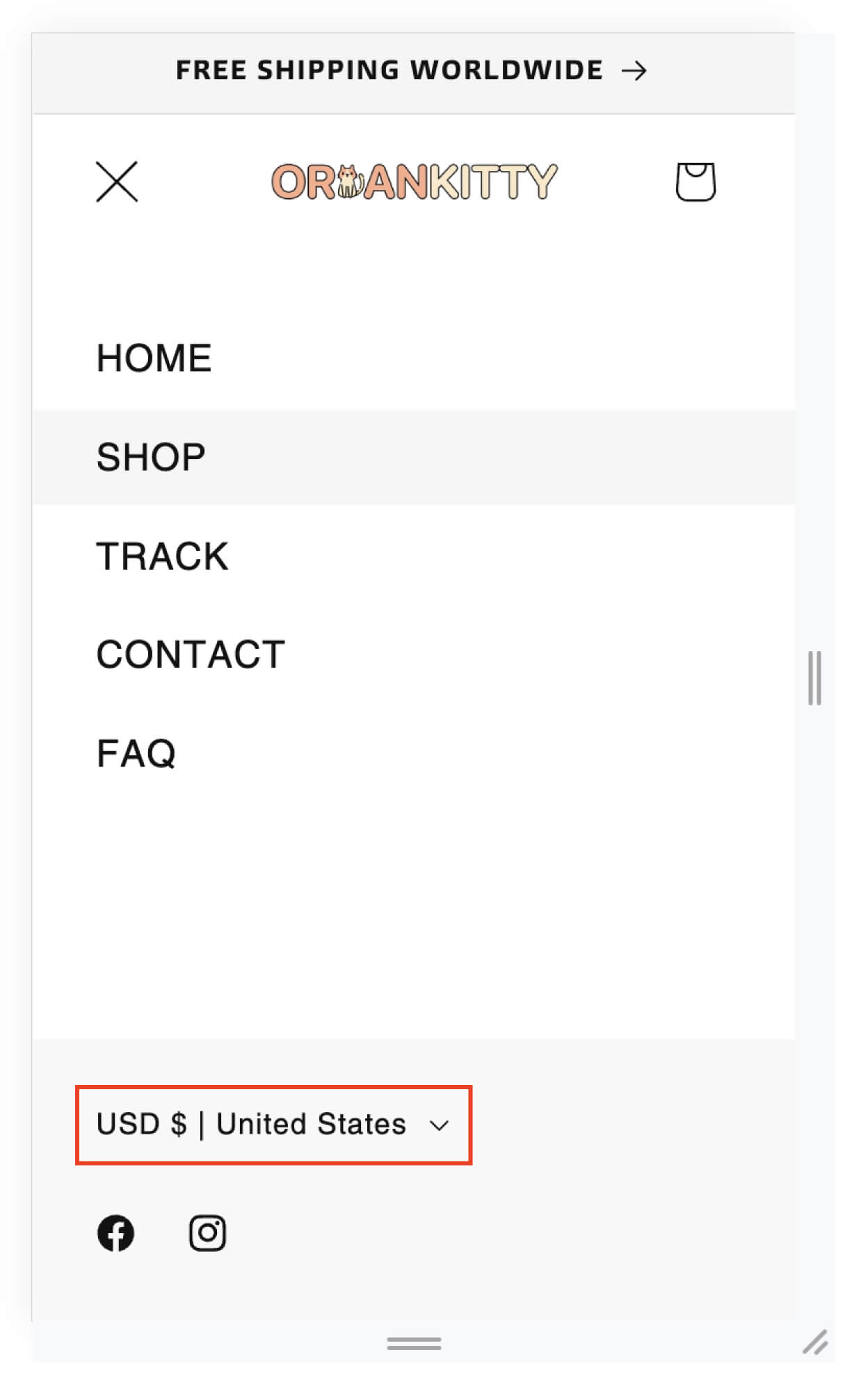
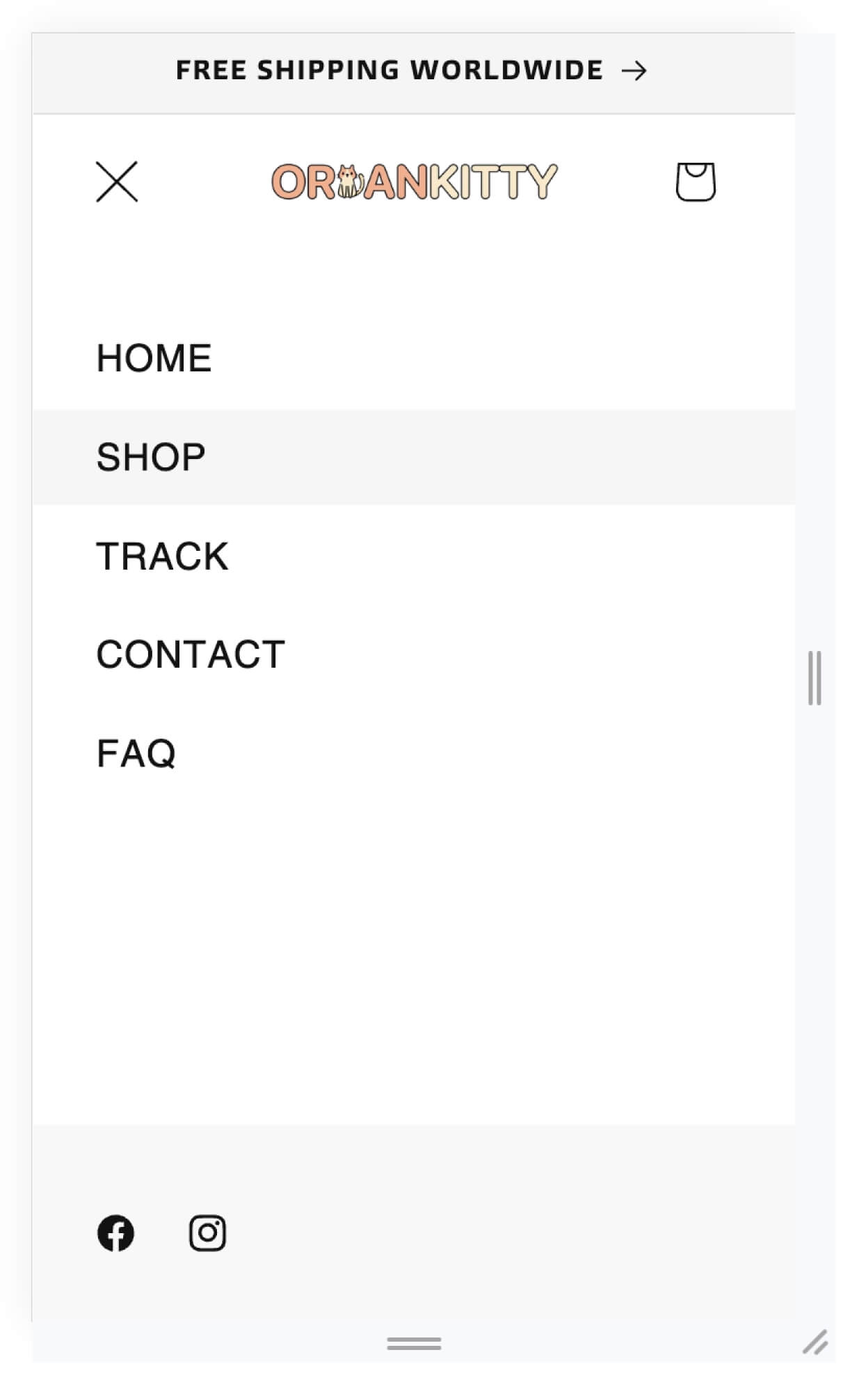
### Remove the currency selector from the mobile menu
Source:
If you're using the **Dawn** theme, add the code at the end of the **base.css** file.
```
@media only screen and (max-width: 989px){
.menu-drawer__localization.header-localization {
display: none;
}
}
```